Operator & User Guide
Learn how to build automation DAGs, trigger parameterized blueprints, and debug runtime failures with the AI assistant.
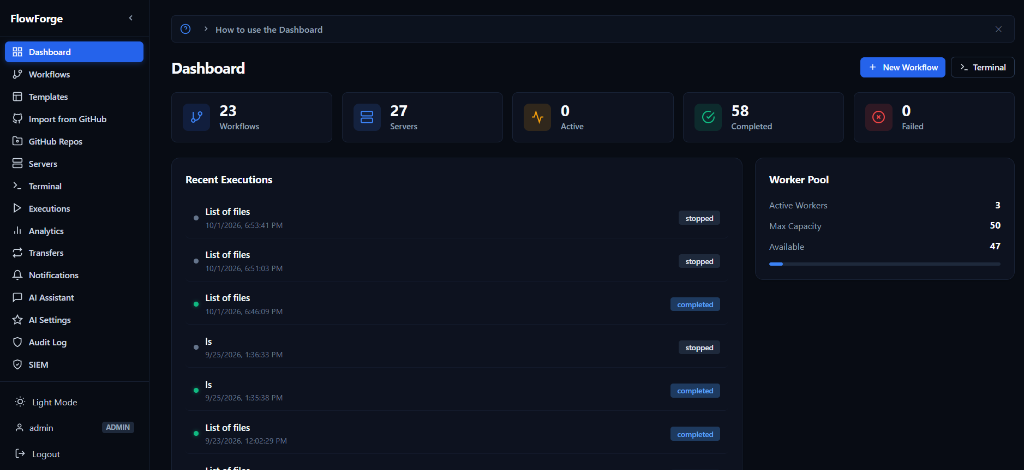
1. Dashboard
The Dashboard provides an executive-level overview of your entire IT automation fleet, active worker nodes, and recent execution statuses.
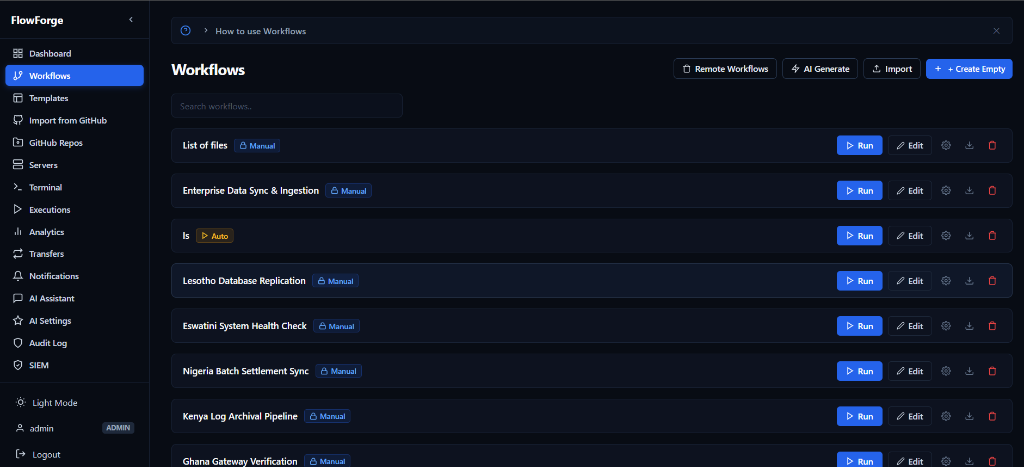
2. Building Workflows (DAG)
Operators can drag and drop discrete automation scripts (nodes) onto the canvas to form a Directed Acyclic Graph (DAG).
3. Templates
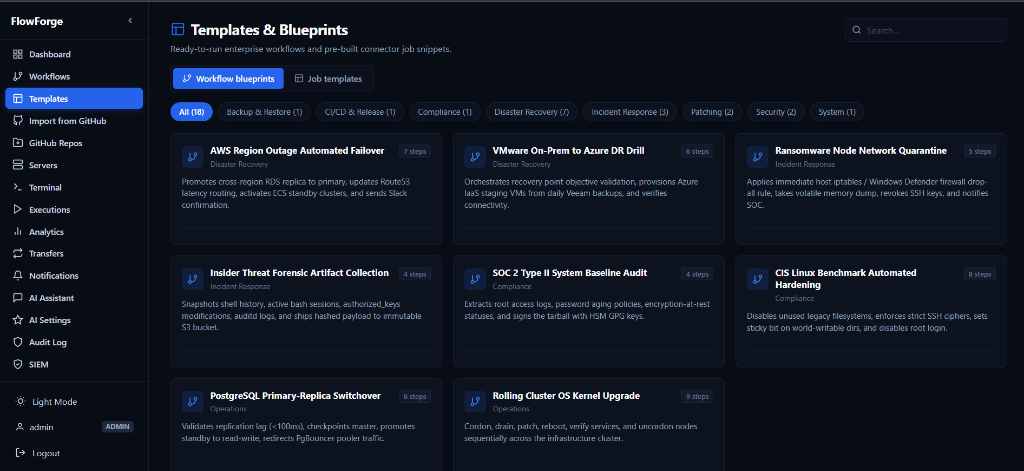
For day-to-day operations, use the Templates & Blueprints module to execute pre-approved runbooks (like Disaster Recovery drills) with a single click.
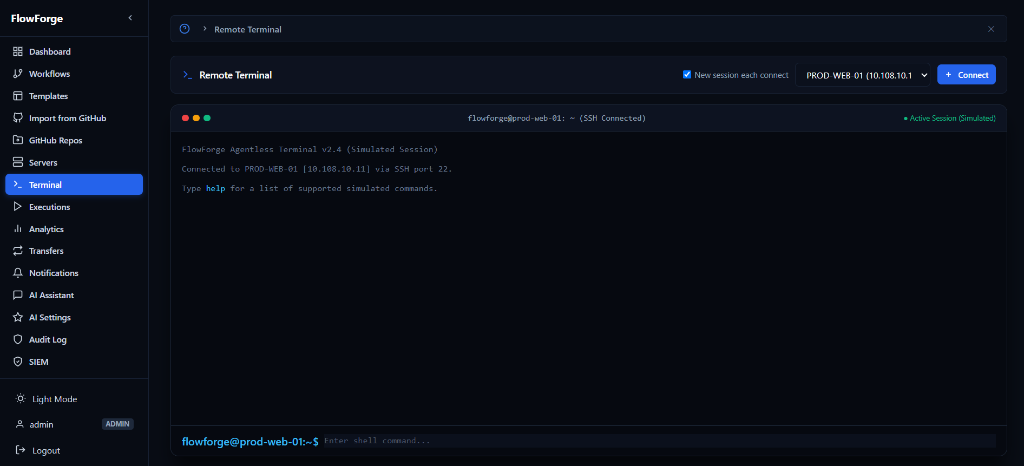
4. Interactive Terminal
FlowForge includes a zero-trust, browser-based SSH terminal. All sessions are backed by `screen`, meaning you can safely close your laptop lid, and your SSH session will continue executing in the background.
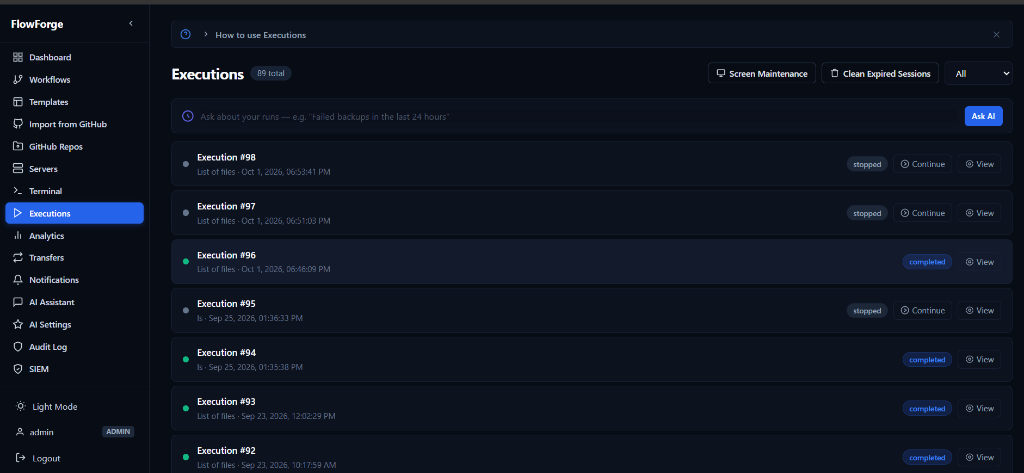
5. Executions Log
Watch standard output (stdout) and standard error (stderr) stream directly to the browser for every job running in your fleet.
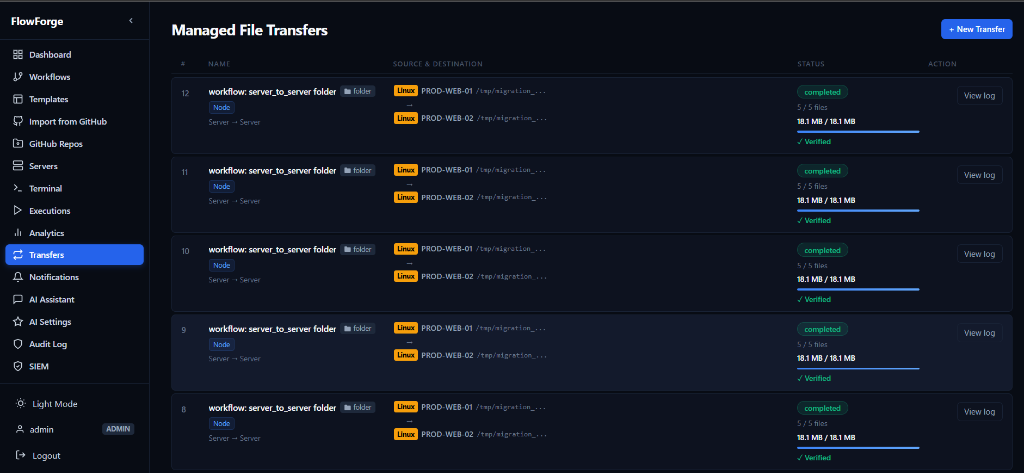
6. Transfers (MFT)
The Managed File Transfer (MFT) module orchestrates the secure movement of large payloads between servers with chunking and SHA-256 integrity checks.
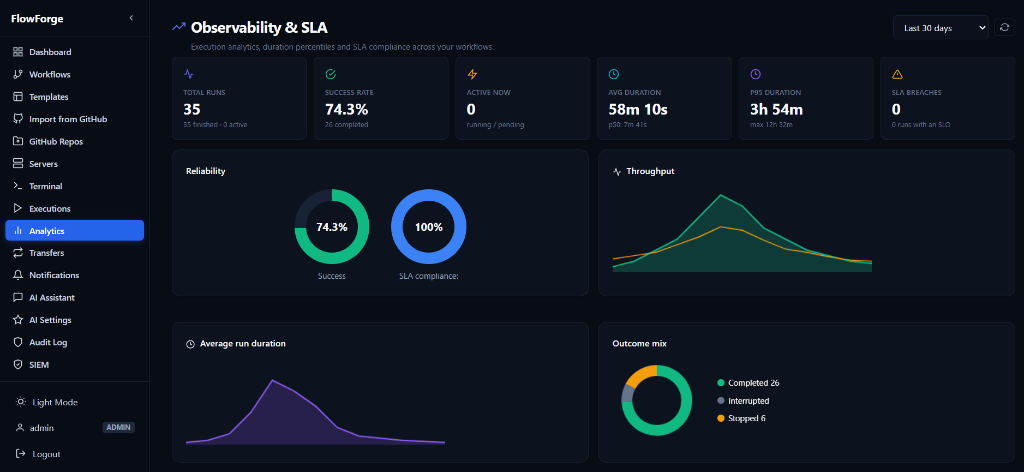
7. Analytics
Visualize workflow reliability and infrastructure performance over time, including SLA compliance tracking and throughput gauges.
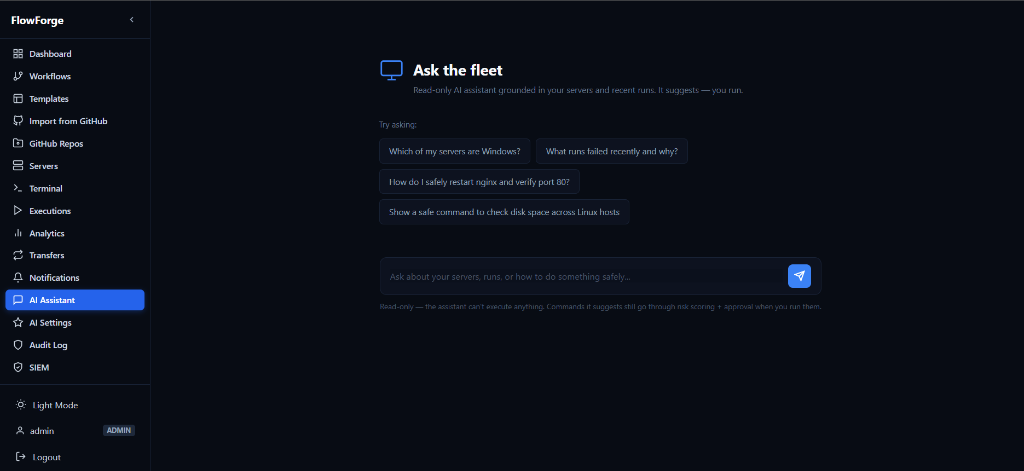
8. AI Assistant
Stuck on an error? Click "Explain Error" on any failed execution to have the AI interpret the stderr output and suggest a remediation script.
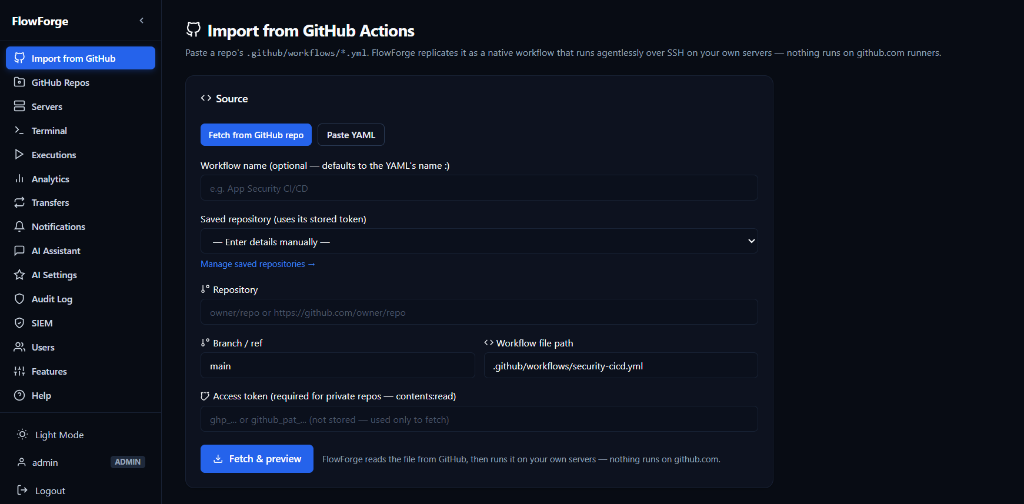
9. Import from GitHub
Directly fetch and preview workflows from your authorized GitHub repositories. Pull down .yml pipelines and replicate them natively on your infrastructure.