SWOT PAM End-User Guide
Operator manual for Software Engineers, DBAs, DevOps Teams, and Contractors. Learn how to request Just-In-Time access, connect to secure target systems via browser or native tools, check out passwords, and interact with the AI assistant.
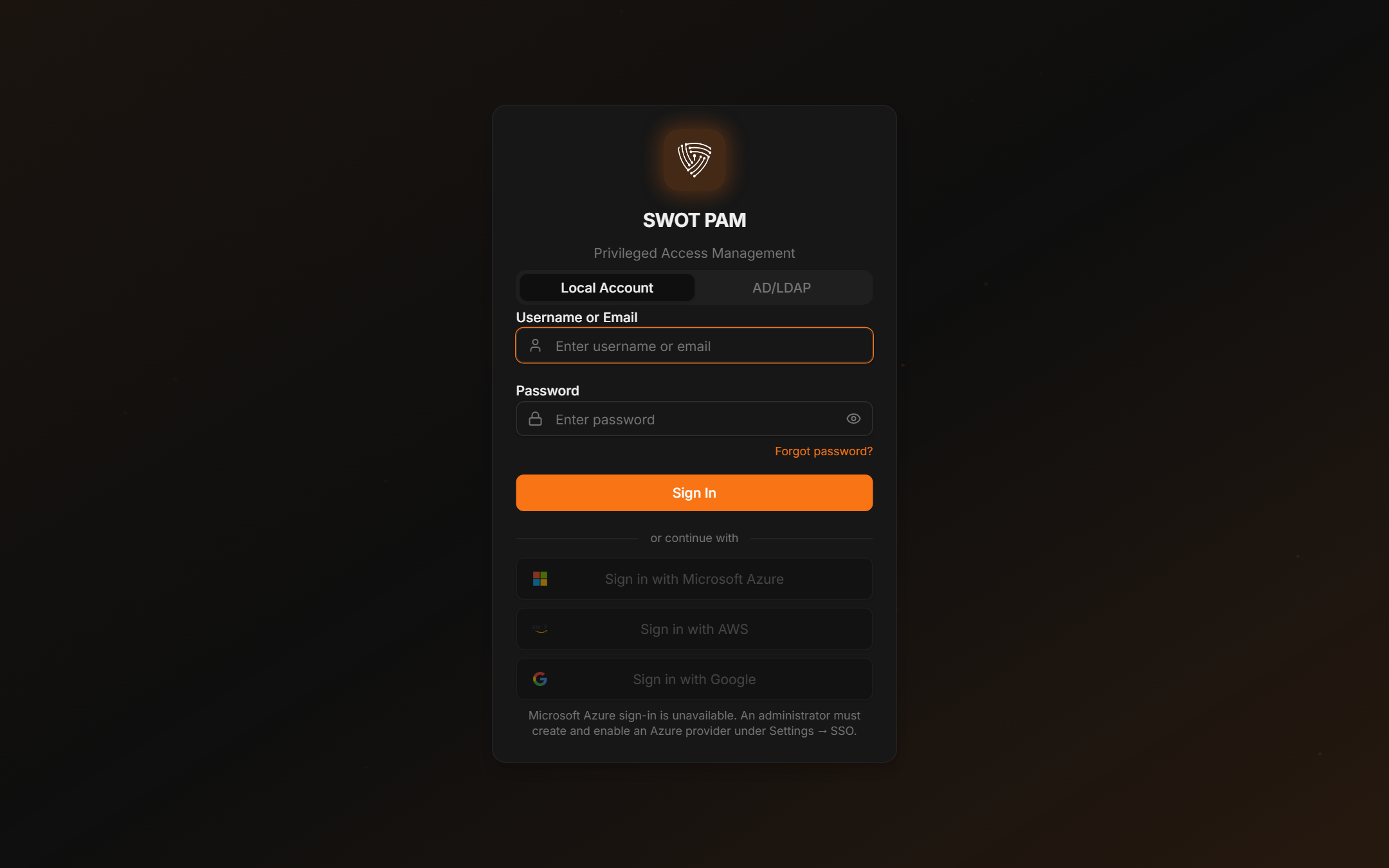
1. Getting Started & Logging In
You access SWOT PAM through any modern web browser (Google Chrome, Microsoft Edge, Firefox, or Safari). No client software installation is required.
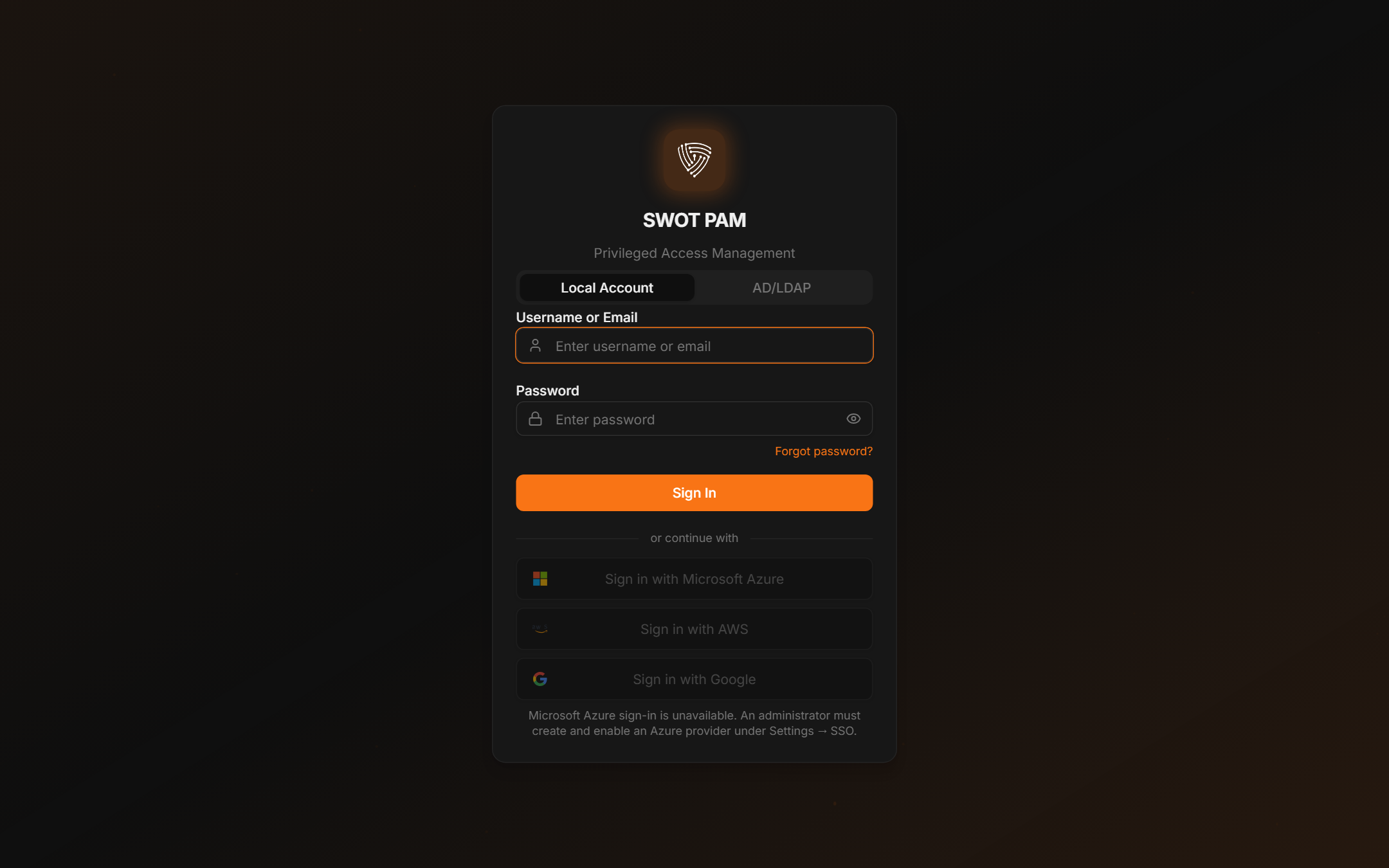
First-Time Setup Checklist:
- Password Update: If your account was provisioned with a temporary password, you will be prompted to set a new password on your first sign-in.
- MFA Enrollment: Scan the QR code displayed on screen with your authenticator app (Google Authenticator, Microsoft Authenticator, or 1Password). Save your backup recovery codes in a safe place.
- Dashboard Landing: Once verified, you arrive at the SOC overview and access hub where your authorized servers and databases are listed.
2. Requesting Privileged Access (Access Hub & JIT)
SWOT PAM operates on the principle of Least Privilege. Instead of having permanent administrative credentials, you request temporary, time-bound access whenever you need to perform maintenance, deployments, or troubleshooting.
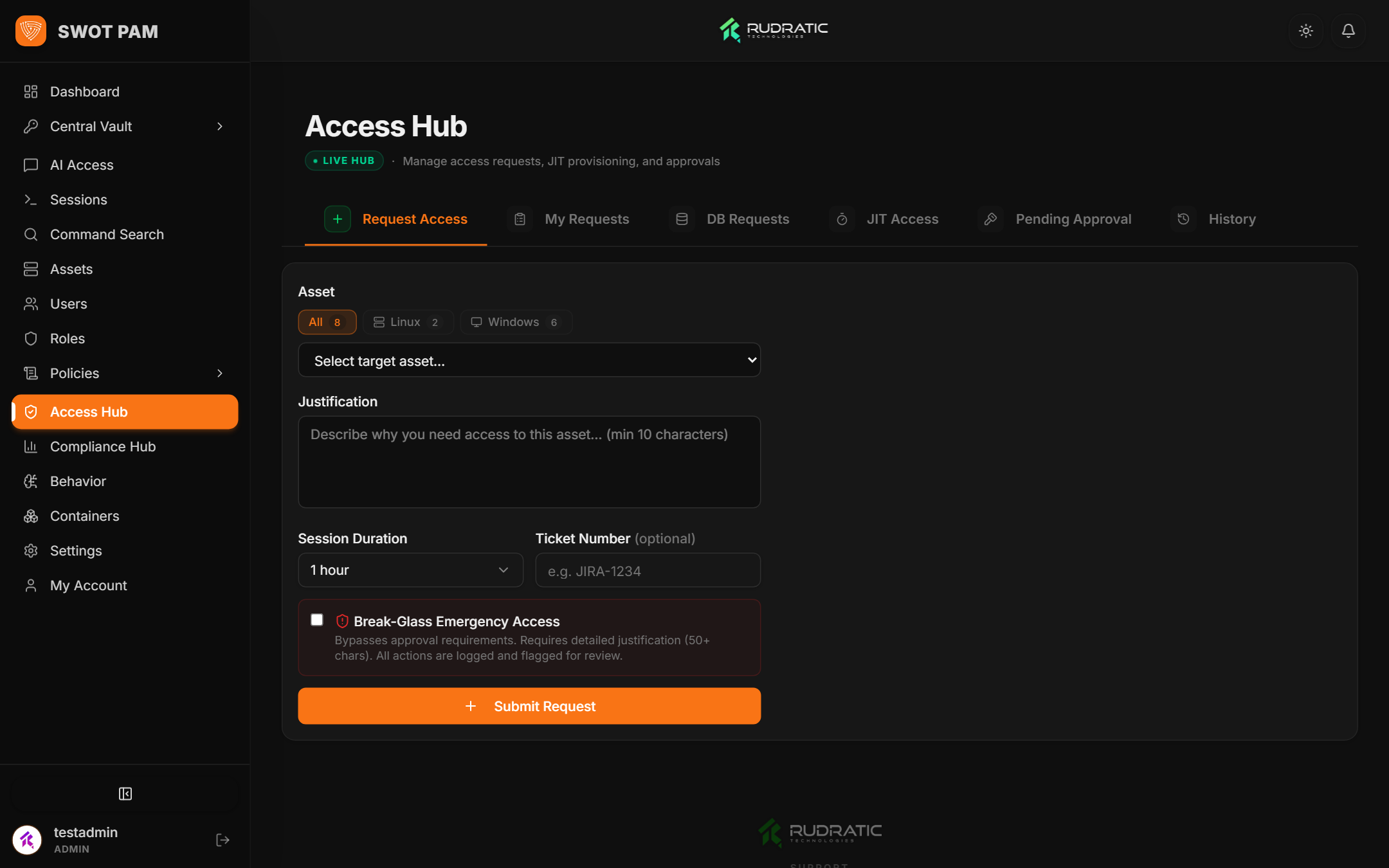
Submitting a Just-In-Time (JIT) Request:
- Navigate to Access Hub in the left navigation sidebar.
- Click Request Access and select the target asset (e.g.
prod-k8s-master-01orfinance-oracle-db). - Specify the required duration (e.g., 1 hour, 4 hours, or 1 business day).
- Enter a clear business justification or link your change management ticket (e.g., "JIRA-4821: Emergency database index rebuild").
- Click Submit Request. Approvers are instantly notified via Slack, Microsoft Teams, and email.
3. AI Access Request Assistant
SWOT PAM includes an intelligent conversational assistant that helps you find targets, check policy requirements, and submit access requests using plain English queries.
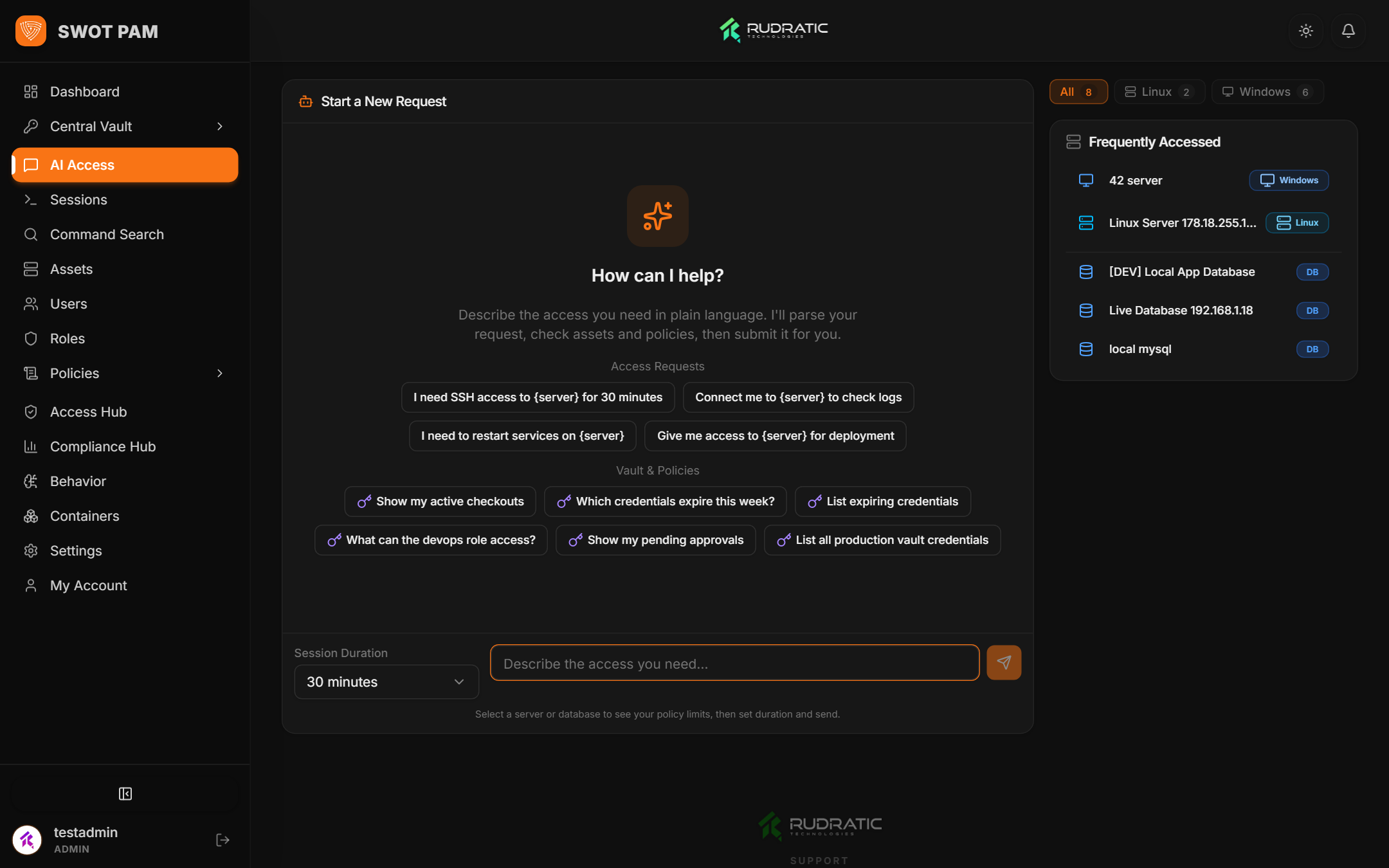
Example queries you can type to the assistant:
- "I need read-only access to the billing PostgreSQL database for 2 hours to investigate incident INC-902."
- "Show me all staging Linux web servers in the US-East region."
- "What is the status of my pending checkout request for the AWS root production account?"
4. Connecting to Linux & Unix Targets (SSH)
You can connect to remote Linux servers using either the integrated in-browser web terminal or your preferred native terminal client (macOS Terminal, Windows Terminal, PuTTY).
Option A: In-Browser Web Terminal
Click Connect next to any authorized Linux asset in the Asset Inventory or Access Hub. A secure, low-latency web terminal powered by xterm.js opens immediately in your browser tab.
- Zero Client Configuration: No SSH keys or VPN required. Credentials are automatically injected by the PAM proxy.
- Clipboard & Shortcuts: Full support for copy/paste, standard POSIX signals (
Ctrl+C,Ctrl+Z), and full-screen terminal mode.
Option B: Connecting via Native Terminal Client
Prefer your own local terminal setup? You can SSH directly through the SWOT PAM SSH Proxy running on port 2222 using your PAM username and target identifier:
# Syntax: ssh -p 2222 <pam_user>#<target_asset_or_ip>@<pam_host>
ssh -p 2222 alice#prod-web-01.corp@pam.mycompany.com

# Authenticate with your PAM password + 6-digit TOTP code when prompted:
# Password: [YourPassword][123456]
5. Connecting to Windows Servers (RDP & RemoteApp)
Access Windows desktops and virtualized RemoteApp tools with full credential injection. The underlying administrator password is never exposed to your local device.
HTML5 Browser RDP
Click Launch RDP to open an interactive Windows session directly in your browser. The connection features adaptive resolution, bidirectional audio, and clipboard synchronization.
Native Remote Desktop Connection (mstsc.exe)
To use multi-monitor setups or local USB devices, download the single-use .rdp connection file generated by the portal. Double-click to launch Windows Remote Desktop Connection:
# Launch downloaded one-time connection bundle
mstsc.exe /edit:session-token-38910.rdp
6. Database Access (Web GUI, Shell & Native Clients)
SWOT PAM provides comprehensive database access controls for PostgreSQL, Oracle, MySQL, and Microsoft SQL Server.
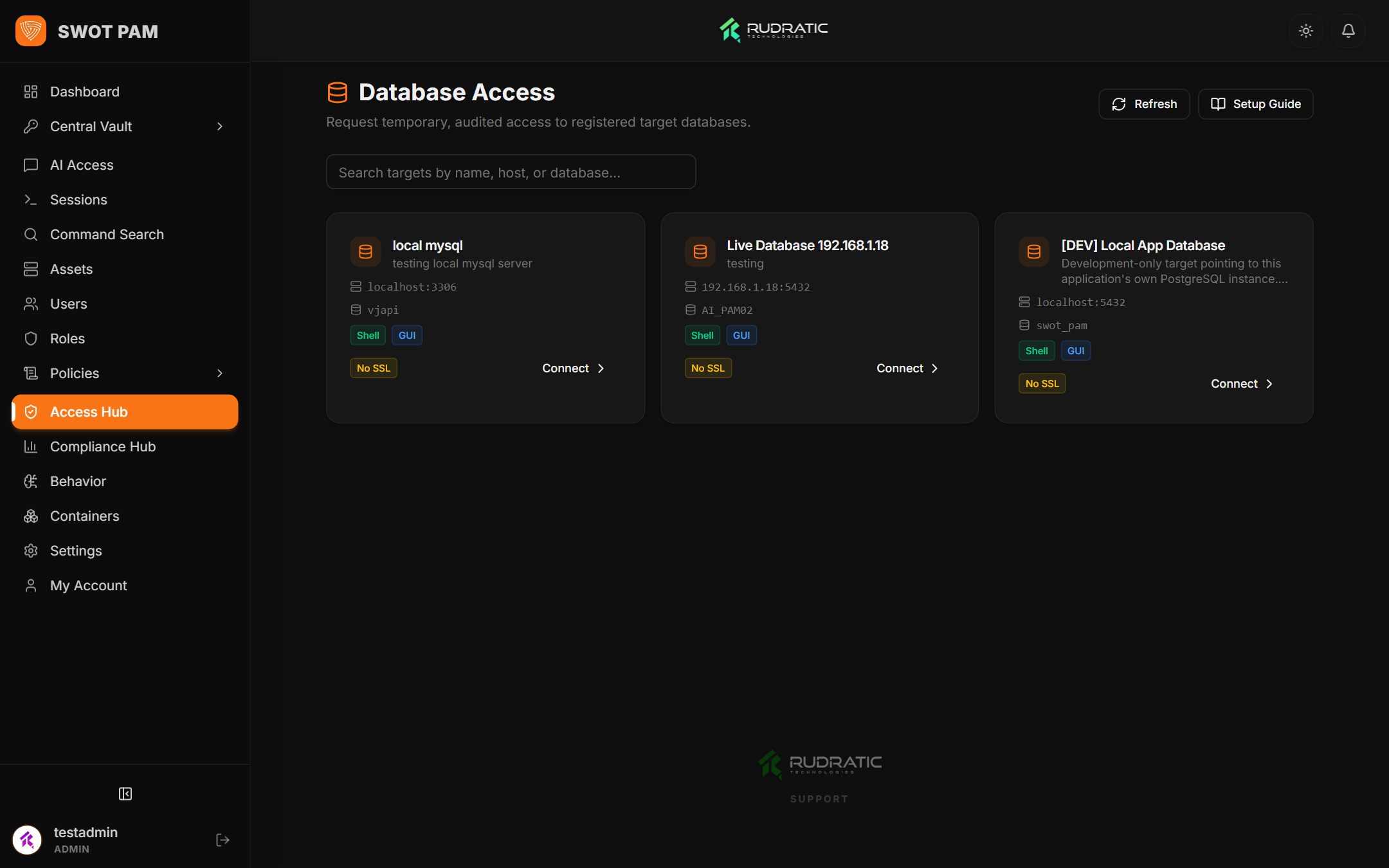
Three Flexible Ways to Query:
- In-Browser DB GUI (CloudBeaver / Adminer): Complete visual SQL editor, table browser, schema explorer, and query execution window without installing desktop tools.
- In-Browser DB Shell: Fast interactive command line (
psql,sqlplus,mysql) inside your browser. - Native SQL Client Proxy: Connect your favorite local tool (DBeaver, DataGrip, pgAdmin, SQL Developer) directly to the DB Proxy port (
5454for Postgres,1521for Oracle) using your PAM identity.
7. Central Vault: Credential Checkout & Secret Management
When you need API keys, service account credentials, or SSH private keys for automated pipelines or external utilities, you can check them out from the Central Vault.
Checkout & Checkin Lifecycle:
- Checking Out: Click Checkout on the desired credential card. Specify the checkout duration (e.g. 2 hours).
- Accessing Secret: Once approved, the secret is revealed and you can copy the password or download the SSH private key.
- Checking In: When finished, click Check In. If your organization has auto-rotation enabled, SWOT PAM will immediately cycle the password on the remote system to ensure zero credential reuse!
8. Reviewing Past Sessions & Audit History
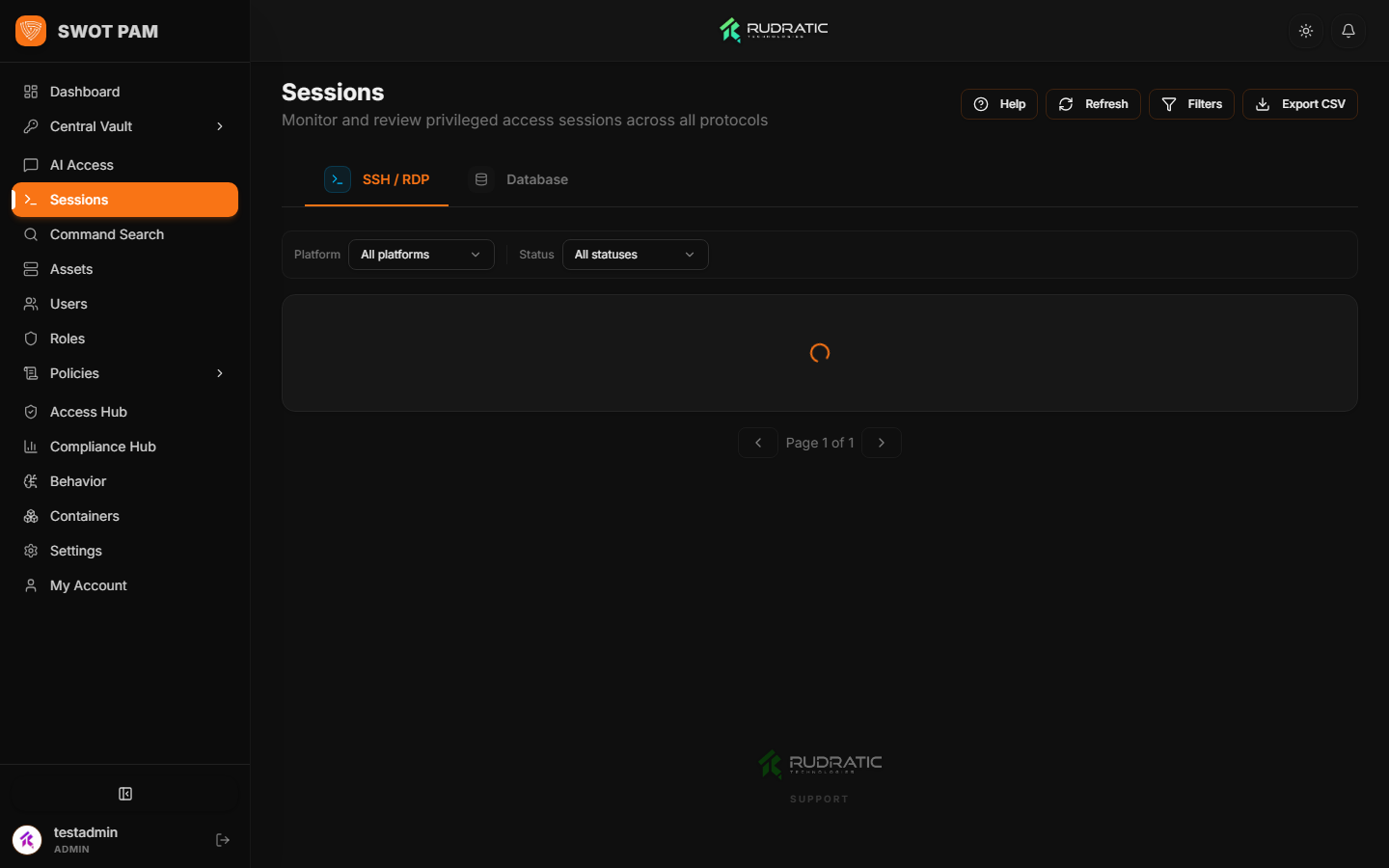
Transparency and accountability are core to PAM. Users can review their own connection history, check executed commands, and review security events.
9. Profile Management & Personal Settings
Each operator can manage their personal profile, authentication credentials, native RDP shortcuts, active login sessions, and Multi-Factor Authentication (MFA) settings from the Profile page (accessible by clicking your username or avatar in the upper-right corner or navigating to /profile).
Profile Information & Native RDP Credentials
The Profile tab allows you to update your primary email address and manage your saved native RDP credentials:
- Email Address: Update your notification address for access request approvals and security alerts. Enter your current password to confirm changes.
- Native RDP Credential: If your organization allows per-user credentials for native desktop connections (mstsc.exe, Remmina), configure your saved username here. When you request Windows access with "Remember me" checked, SWOT PAM automatically bridges your session without repetitive login prompts.
Security & Self-Service Password Management
The Security tab provides self-service account hygiene:
- Change Password: Update your account password at any time. Must satisfy the enterprise complexity policy (minimum 12 characters, uppercase, lowercase, numbers, and symbols).
- Security Log: Review recent authentication events, password changes, and IP addresses associated with your account.
Active Login Sessions & Emergency Revocation
The Sessions tab displays all currently active browser sessions, mobile tokens, and proxy connections linked to your account:
- Session Details: Inspect device type, browser, client IP address, and login timestamp for each active session.
- Revoke Other Sessions: If you suspect unauthorized access or logged in from a shared computer, click "Terminate All Other Sessions" to instantly invalidate all other tokens while keeping your current tab active.
Multi-Factor Authentication (MFA / TOTP)
The MFA tab manages your second-factor security requirements:
- Authenticator Setup: Pair standard TOTP authenticator apps (Google Authenticator, Microsoft Authenticator, 1Password, or YubiKey).
- Recovery Backup Codes: Generate and securely store single-use backup recovery codes in case your mobile device is lost or replaced.